
Grace Hopper developed the first compiler for a computer programming language.
First Steps
Youtube messes up the audio quality sometimes here is a HD version of the video. HD Version
- This is a .mov file. Play it either using VLC or Quicktime
- This video is from CMPT 295 for illustration.
- CMPT 750 will not include continuous integration or artifact logs
Check Yourself
Please make sure that you can connect to the course server using VSCode or SSH via the terminal. If not, check the Tutorials page.
Step 1: Create github
Create github account. If you already have github account; upgrade to education by following instructions on site.
Step 2: Fill github form
Please fill out the Github Form to provide your GitHub username and student information.
Step 3: Passwordless github access
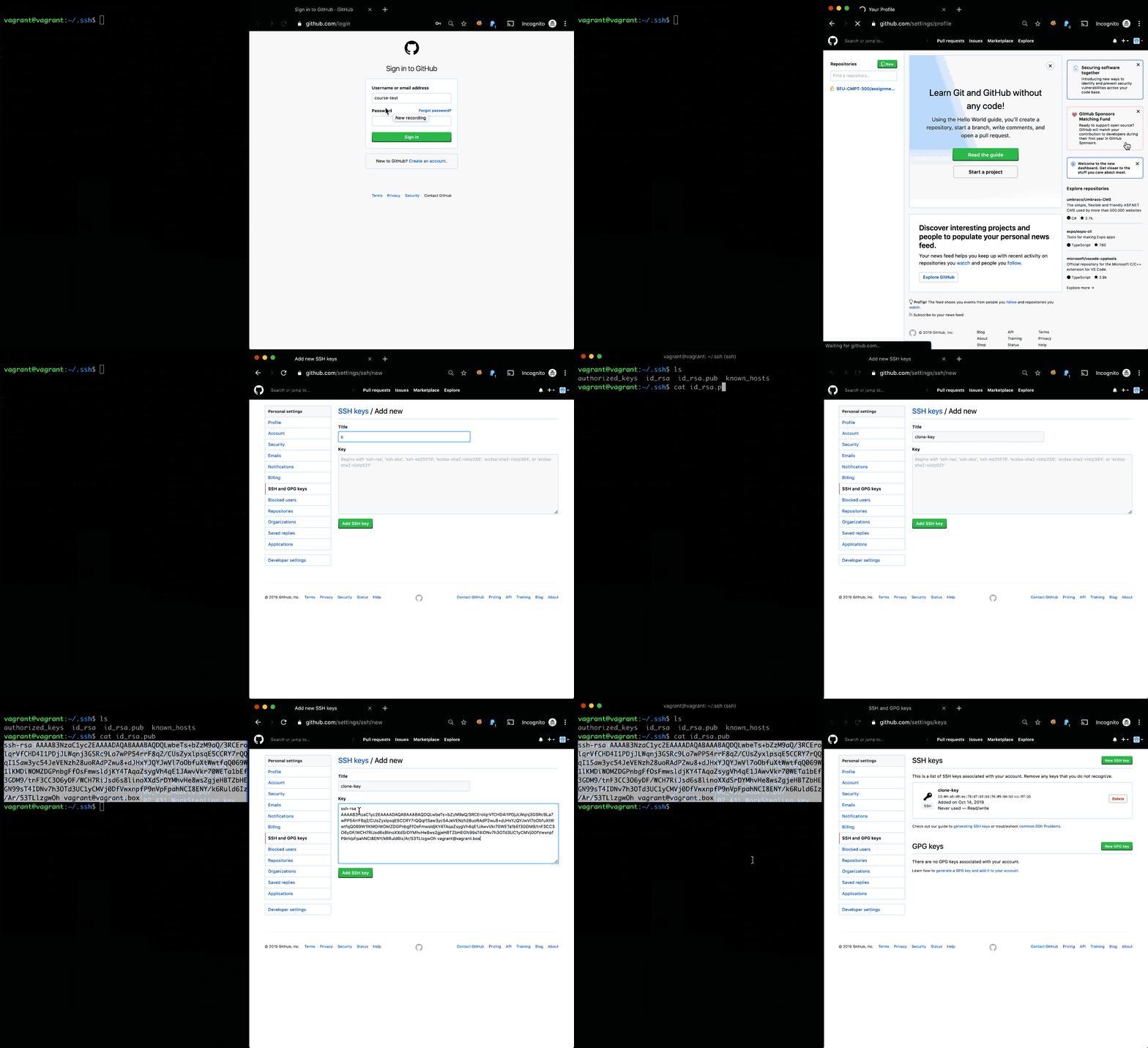
Set up github access keys to permit access to github.. Run the following commands to set up passwordless access to github. Also see the GIF below.
$ cd ~/.ssh
$ ssh-keygen # Generates SSH keys (creates two files id_rsa and id_rsa.pub)
# By default id_rsa is used for authenticating with github.
# Copy id_rsa.pub to github
$ chmod 600 id_rsa
$ ssh -T git@github.com
# If things went correct.
Hi..... You've successfully authenticated..
(The GIF does not include generation of ssh keys.).
Lab 0
The purpose of lab 0 is to illustrate the flow of programming assignments/homeworks.
The steps below assume the following.
- Assignment Name: lab-0
- Github id: course-test
Replace “course-test” with your github id in the steps below.
Step 1: Create a your repository
You will be provided an assignment-specific starter code. Use this link to clone and create a private repository (visible to you and TA only) for you to work with.
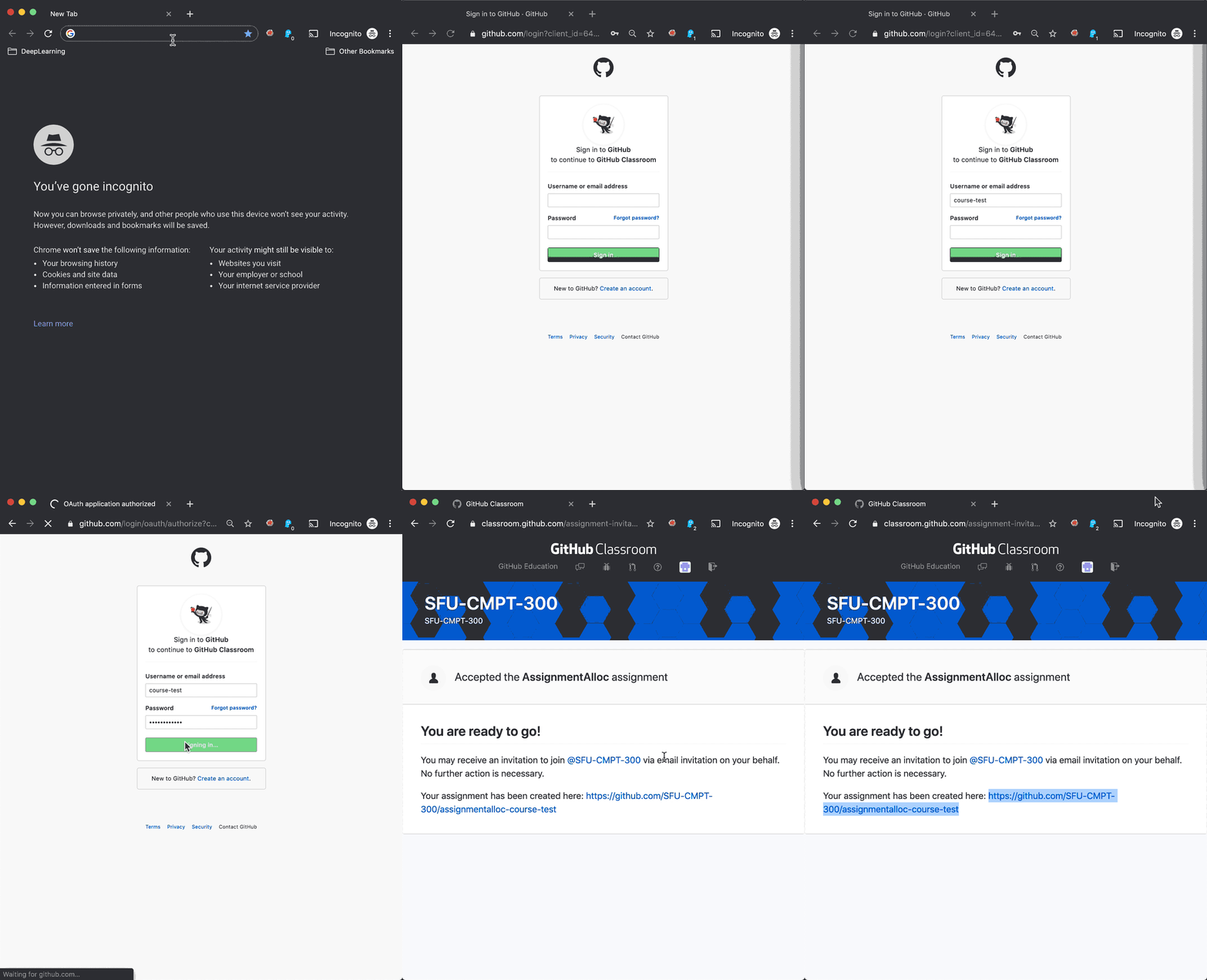
Once you create the repository you will have a respository with the following name https://github.com/CMPT-7ARCH-SFU/[Assignment]-[GithubID]. For lab-0 and github id course-test the repository will be:
git@github.com:CMPT-7ARCH-SFU/lab-0-course-test.git
Step 2: Clone your specific repository
WARNING: Replace course-test with your username
$ git config --global user.email "course-test@sfu.ca"
$ git config --global user.name "Course Test"
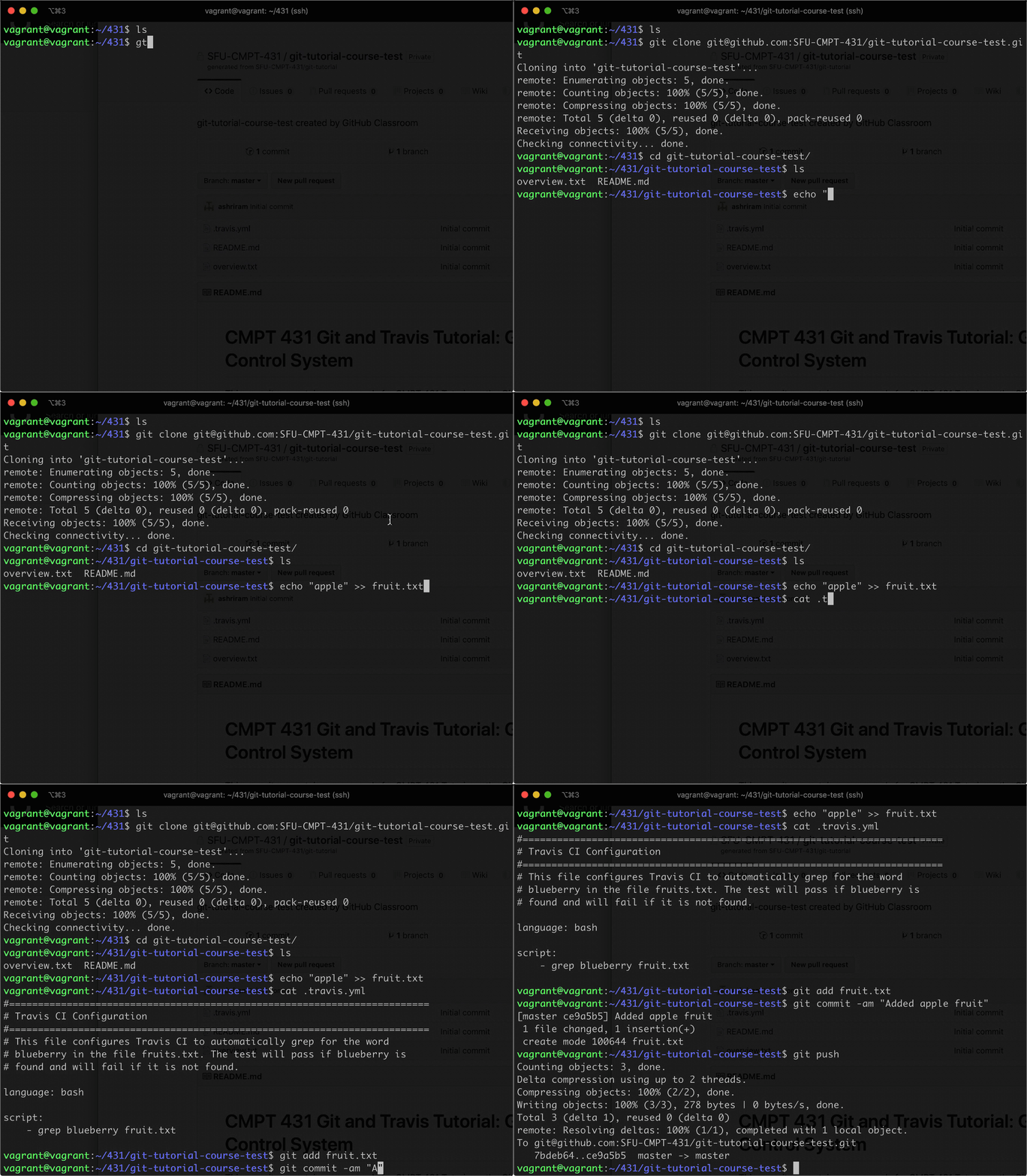
$ GIT_USER="course-test" ; git clone git@github.com:CMPT-7ARCH-SFU/lab-0-$GIT_USER
Step 3: Check initial build
$ cd lab-0-course-test
$ ls
Step 4: Complete assignment tasks
Open the file fruit.txt and add two fruits of your choice. For example,
$ echo "blueberry" >> fruit.txt
$ echo "mango" >> fruit.txt
$ git add fruit.txt
Step 5: Commit repository
Commit and push your changes to github.
$ git commit -am "Added fruits"
$ git push
Step 6: Check github.com
Go to your repository on github.com and check that the file fruit.txt has the contents you expect.

–